starting with HTML + CSS (Step 4: adding a navigation bar)
The list at the top of the HTML page is meant to become a navigation menu. Many Web sites have some sort of menu along the top or on the side of the page and this page should have one as well. We will put it on the left side, because that is a little more interesting than at the top…
The menu is already in the HTML page. It is the <ul> list at the top. The links in it don't work, since our “Web site” so far consists of only one page, but that doesn't matter now. On a real Web site, there should not be any broken links, of course.
So we need to move the list to the left and move the rest of the text a little to the right, to make room for it. The CSS properties we use for that are 'padding-left' (to move the body text) and 'position', 'left' and 'top' (to move the menu).
There are other ways to do it. If you look for “column” or “layout” on the Learning CSS page, you will find several ready-to-run templates. But this one is OK for our purposes.
In the editor window, add the following lines to the HTML file:
<!DOCTYPE html PUBLIC "-//W3C//DTD HTML 4.01//EN"><html><head> <title>My first styled page</title> <style type="text/css"> body { padding-left: 11em; font-family: Georgia, "Times New Roman", Times, serif; color: purple; background-color: #d8da3d } ul.navbar { position: absolute; top: 2em; left: 1em; width: 9em } h1 { font-family: Helvetica, Geneva, Arial, SunSans-Regular, sans-serif } </style></head><body>[etc.]If you save the file again and reload it in the browser, you should now have the list of links to the left of the main text. That already looks much more interesting, doesn't it?
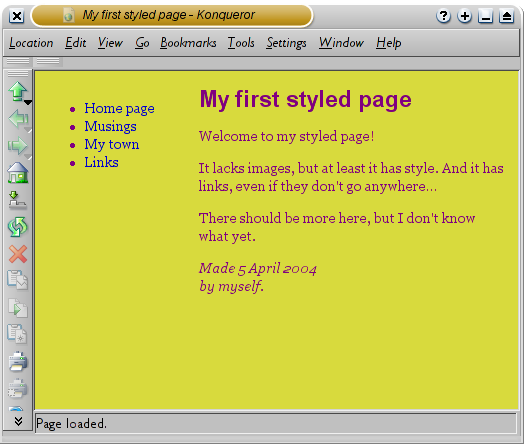
The main text has been moved over to the right and the list of links is now to the left of it, instead of above.
The 'position: absolute' says that the ul element is positioned independently of any text that comes before or after it in the document and the 'left' and 'top' indicate what that position is. In this case, 2em from the top and 1em from the left side of the window.
'2em' means 2 times the size of the current font. E.g., if the menu is displayed with a font of 12 points, then '2em' is 24 points. The 'em' is a very useful unit in CSS, since it can adapt automatically to the font that the reader happens to use. Most browsers have a menu for increasing or decreasing the font size: you can try it and see that the menu increases in size as the font increases, which would not have been the case, if we had used a size in pixels instead.
Step 1 | Step 2 | Step 3 | Step 4 | Step 5 | Step 6 | Step 7
(W3)
Related Posts
Related Posts |